
✅ What are Depth Health Checks?
Depth Health Checks (DHC) are notifications designed to help you focus your depth registration review on the areas that need attention, so you don’t have to manually inspect every depth registration mark that has been predicted or captured from your imagery.
They highlight potential issues caused by missing depth or core loss information, incorrect depth values, and model confusion, guiding you directly to the sections that may require correction.
🔎 Where do I find DHC notifications?
- To see the relevant checks for each hole, click on the hole.
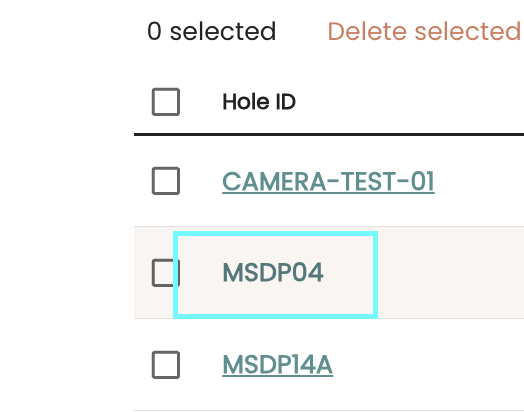
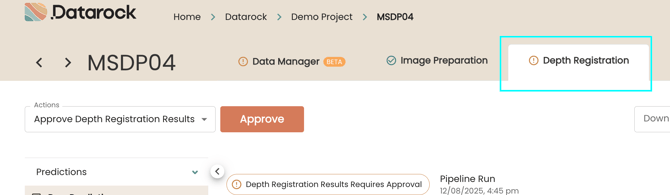
- Go to the Depth Registration tab.
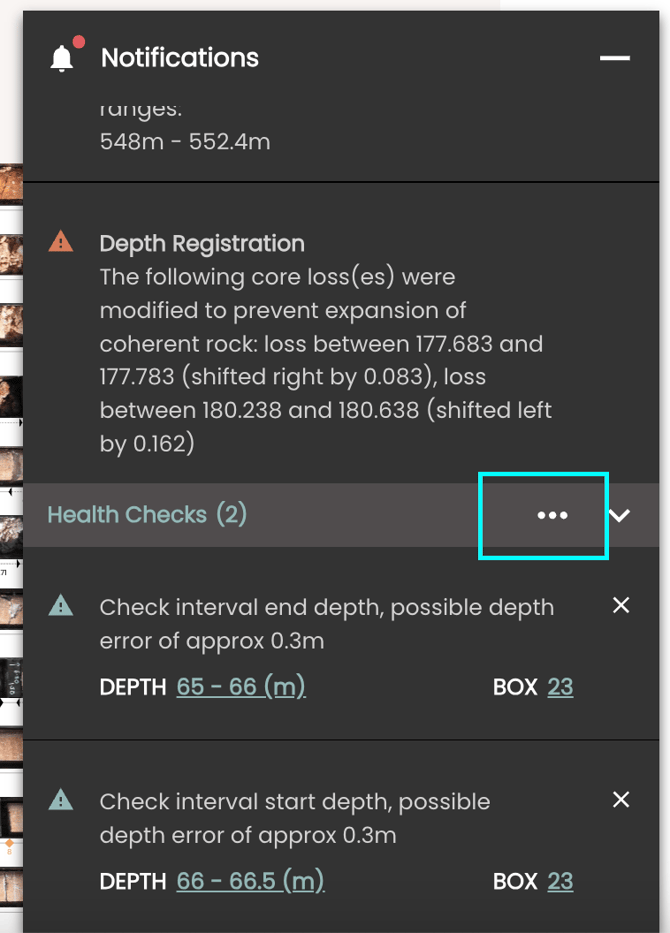
- Click on the Notifications panel in the bottom right, and locate the 'Health Checks' list. NB: if there are no DHC warnings to address, a"No health check warnings" will be present.

✏️ Can I edit DHC settings?
- Yes, you can edit some Depth Health Check Settings.
1. Editing DHC Tolerances.
- If there are too many DHC notifications, you may benefit from editing the DHC tolerance, to gauge how large these deviations really are.
- There's two ways to do this: per hole, or for the whole Project.
- Per hole adjustments are self-serviced, whereas to request full project DHC settings to be modified, you'll need to lodge a support ticket.
Modifying DHC Settings per Hole.
-
- Once you're in the ‘Health Checks' section, click on the three dots (…).
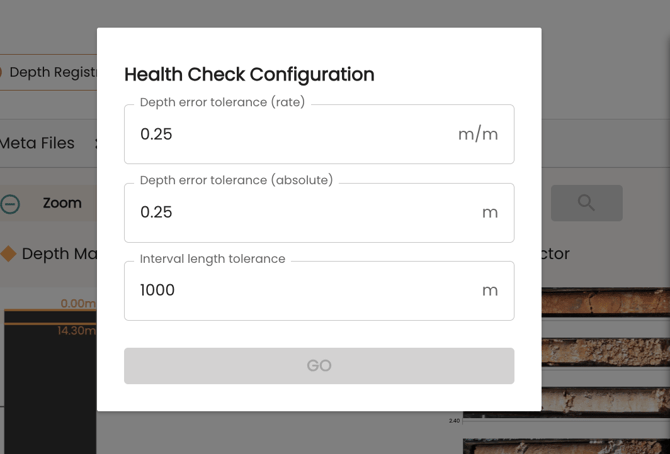
- A window will pop up with ‘Depth Error Tolerance (rate)’, ‘Depth Error Tolerance (absolute)’ and ‘Interval Length Tolerance’.
- Depth Error Tolerance (rate) = tolerance as defined by a rate of drift within an image
- Depth Error Tolernce (absolute) = tolerance as defined between two defined DR points/marks
- Interval Length Tolerance = the amount of metres with no tray depths on images
- Edit as needed and Click on 'Go'.
- Re-run hole.
- Once you're in the ‘Health Checks' section, click on the three dots (…).
2. Reclassifying Coherent as Incoherent based on width.
- Minimum width of coherent rock can be used to reclassify coherent as incoherent if the rock is narrow.
- To request this setting to be modified, you'll need to lodge a support ticket.
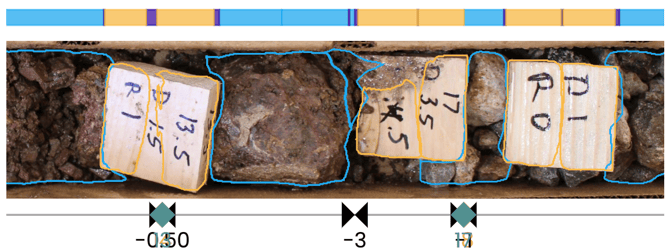
3. Changing Optical Character Recognition (OCR) settings.
-
Only consider OCR readings from certain objects
- By default, OCR will read markings on core and core blocks, but upon request, this can be changed for OCR to only consider depths defined on core markings, only on core blocks, or neither.
- This can be useful when, for example, depth markings on the core are hard to read and end up delivering inaccurate depth registration marks.
-
Changing decimal separator
- By default, the OCR decimal separator will be set to period (.), but this can be changed to a comma (,).
🔔 DHC Notifications, Potential Causes & Fixes
|
Notification |
Potential Reason |
Fix |
|
Not enough rock to match interval depths |
Incorrect tray depths |
Edit tray depths. |
|
Core Loss n/a or inaccurate |
Add/Update core loss intervals. If spanning across multiple trays, finish intervals within tray. |
|
|
Core Gain |
Cannot be added. |
|
|
Model doesn’t identify all rock |
||
|
Row model missed a row |
||
|
OCR misreading/missing depths |
Lodge a support ticket to request these settings to be modified: |
|
|
Too much rock to match interval depths |
OCR misreading/missing depths |
Lodge a support ticket to request these settings to be modified: |
|
Incorrect tray depths |
Edit tray depths. |
|
|
Core Loss not accurate |
Update core loss intervals. |
|
|
Misdetection/Overlapping coherent and incoherent rock |
||
|
Row model picked up a row that doesn’t exist. |
Sometimes models may detect rows from a nearby tray, or mistakenly identify another object as a row. |
|
|
Detecting rock in empty trays (or there are bits of rubble in there) |
-Lodge a support ticket. |
|
|
NAVI holes. |
Extra/lost meters in NAVI holes. |
-When recording this issue, please follow the same approach you would use when logging data. Make sure the images are accurately aligned to the correct downhole depths so that the interval is properly represented. |
|
Check interval end/start depth |
Incorrect tray depths creating a dipole error |
Edit tray depths. |
|
Interval length is greater than Xm |
Missing tray depth metadata |
Add depths to more trays to reduce the distance between trays below the Interval Length Tolerance. |
|
Missing trays |
Upload missing trays and run IP + DR |
If you think we’re missing examples, or if you’re still unsure how to resolve an issue, please reach out by lodging a support ticket. We’re here to help!